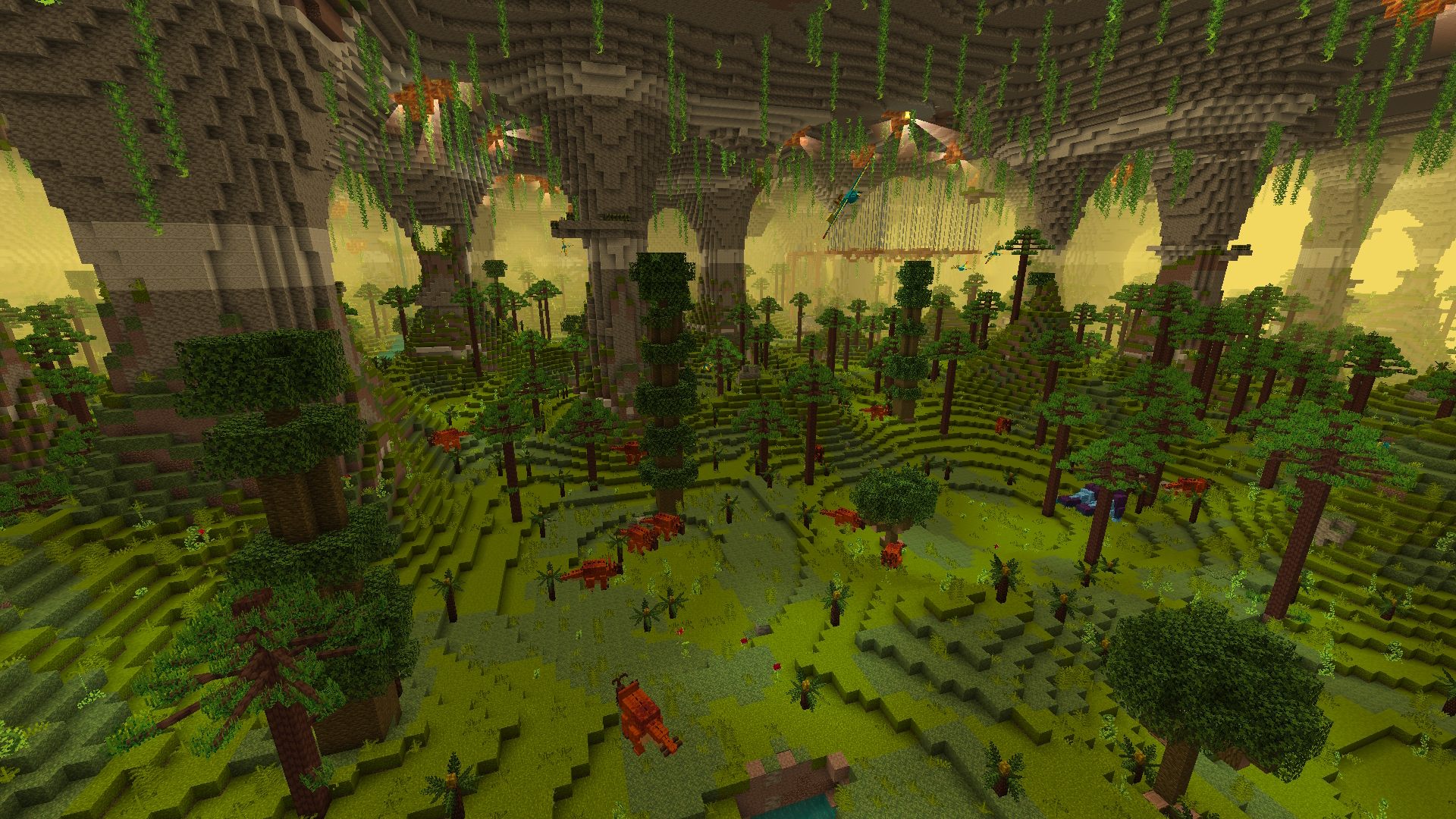
Primordial Caves in the original Java Edition mod. Screenshot: official Alex's Caves gallery, Alexthe668 and Noonyeyz.
Searching for an Alex Caves mod download usually returns dozens of pages, mirrors and re-uploads. This guide explains exactly what you need before you download Alex Caves Mod, which file goes where, and how to avoid the most common mistakes that stop the mod from loading.
What you need before downloading
Alex Caves Mod is a large content mod for Minecraft Java Edition. The original release line targets Minecraft 1.20.1 and runs on a mod loader, so you need three things in place:
- Minecraft Java Edition installed and launched at least once.
- A mod loader for 1.20.1 – Forge is the loader the original mod was built for. Our Forge 1.20.1 install guide walks through it.
- Citadel – a required library mod. Alex Caves Mod will not start without a matching Citadel file.
Choosing the correct file
Mod files are tied to a specific Minecraft version and loader. When you download, check these details on the file page before you save anything:
Match the Minecraft version
A file made for 1.20.1 will not load on 1.20.4 or 1.21. If you want to play on a newer version, read our notes on NeoForge and Fabric community ports first.
Match the loader
Use the file that lists the loader you actually installed. Mixing a Forge file with a Fabric profile is one of the most common reasons the game closes on startup.
Keep the .jar format
The mod file is a .jar. Do not unzip it and do not rename it to another extension. If your browser offers an .exe or a password-protected archive, that is not the mod file.
Step-by-step download
- Open the download section on our homepage and press the Download button.
- Save the
.jarfile to an easy folder such as Downloads. - Download Citadel for the same Minecraft version and loader.
- Move both files into your
.minecraft/modsfolder. - Start the game with your Forge 1.20.1 profile.
Staying safe with mod downloads
Popular mods attract copycat sites. A few habits keep your PC and your worlds safe:
- Use a trusted source and avoid pages that push extra installers or browser extensions.
- Back up your
savesfolder before adding any new content mod. - Scan downloaded files with your own security software if you are unsure.
- Only install mods you actually need – fewer mods means fewer conflicts.
What to do after downloading
Once the game loads, create a new world or explore new chunks. The cave biomes are rare and generate underground, so you will not see them straight away. Our guide on how to find Alex Caves Mod biomes explains the Underground Cabin, cave tablets and the Cave Compendium. If anything goes wrong, jump to the troubleshooting guide.
Set up a separate Minecraft instance before downloading
A dedicated instance gives your Alex Caves Mod installation its own settings, saves, resource packs and mods directory. This makes it much easier to tell whether a problem belongs to the new setup or an older modpack. Choose a descriptive instance name that includes the Minecraft version and loader, then launch that instance once before copying files. If your launcher supports separate game directories, use that feature rather than repeatedly replacing files in your everyday installation. Keep your original survival world in its existing instance until the new one has passed a basic launch and world creation check.
Read file details instead of relying on search titles
A search result can mention several Minecraft versions even when the actual download supports only one. Read the selected file's compatibility information, dependency requirements and release notes before saving it. The Minecraft version, loader and mod version describe different things: a higher mod version number does not automatically mean support for a newer Minecraft release. Make a short note of all three values. When a friend helps troubleshoot later, this record is more useful than saying you downloaded the latest file. Avoid choosing between downloads simply by comparing their upload dates or the size of their buttons.
Keep a small installation record
Create a plain text note alongside your downloaded files with the selected Alex Caves release, Citadel release, Minecraft version and loader build. You can also record the launcher and the date you tested the combination. This takes very little time and gives you a known working reference when you update the pack. If the download page publishes a checksum, comparing it with your saved file can help confirm that the transfer completed correctly. A checksum is a file integrity check, however, and should not replace checking who published the file and what the project actually requires.
Understand why Citadel is a separate download
Library mods provide supporting code that another mod expects to find when Minecraft starts. Downloading Alex Caves does not necessarily install its libraries when you are copying files manually. Read the dependency information for the exact release you selected, then obtain the compatible library build for that environment. A launcher that manages dependencies may handle this automatically, but you should still inspect the installed mod list. Keep only one intended version of each library in the instance. Leaving an old copy beside a newer copy can make a simple installation problem harder to identify.
Confirm the download finished before moving files
Browsers may show temporary filenames while a transfer is still running. Wait until the download completes and confirm that the saved item is a JAR file rather than a web page, shortcut or incomplete transfer. Enable file extensions in your operating system if the filename is unclear. You do not need to open the JAR by double clicking it; the Minecraft mod loader reads it from the instance's mods directory. If a download fails, retry the transfer from the project listing instead of renaming the unfinished file. Renaming does not restore data that never arrived.
Test the installation before adding optional mods
Start with the loader, Alex Caves and the required dependencies. Reach the title screen, confirm that the mod appears in the installed list, then create a disposable world. Allow the first load to finish before judging performance. You are checking that the game can start and generate terrain, rather than expecting a rare cave to appear beside spawn. Once this baseline works, add optional interface or performance mods in small groups. Keep notes about each change so you can return to the working baseline if a later addition introduces crashes or visual problems.
Prepare a sensible update and rollback routine
Before updating, close Minecraft and copy the entire instance or at least its saves, configuration and current mod list. Read the new release's dependency requirements instead of assuming your old library is still suitable. Replace the intended files while the game is closed and remove obsolete duplicates from the active mods directory. Test a copy of your world first. A world saved with changed content may not behave correctly when opened again with older files, so rolling back should mean restoring the matching backup and mod combination together. Keep the backup until you have checked your normal gameplay activities.
Know what a successful download actually proves
Saving a valid JAR is only the first stage. A complete setup also needs the correct launcher profile, a compatible runtime and a game directory that contains the intended dependencies. If Minecraft starts without the mod, check which instance launched before downloading again. If it reports a missing dependency, read the named requirement rather than replacing every file at once. If the mod loads but no special biome is visible, that is an exploration question rather than evidence of a broken download. Separating these situations saves time and avoids accumulating several unnecessary copies of the same release on your computer.
Conclusion
Getting the Alex Caves mod download right comes down to three checks: the file matches Minecraft Java 1.20.1, it matches your loader, and Citadel is installed alongside it. Keep the .jar file intact, back up your worlds and use the download button on our homepage instead of unknown mirrors. Once the game loads, head underground and start looking for an Underground Cabin.